


Sign in with Google
When you manage hosted social accounts, your real product is trust. A brand can forgive a typo in a caption, but they rarely forgive an account takeover, a lost login, or a sudden lockout right before a campaign launch.
This matters even more for managers working with platforms like TokPortal, where operational reliability is the whole point: consistent posting, clean access, and stable growth across multiple markets. Many creators and businesses also want Instagram Reels posted alongside TikToks, so understanding Instagram hosted accounts (and how to run them safely) is a practical skill that makes you more valuable as a manager.
In day-to-day agency operations, “hosted” typically means you are posting on someone else’s Instagram account as part of a service, often long-term.
There are two common ways this happens:
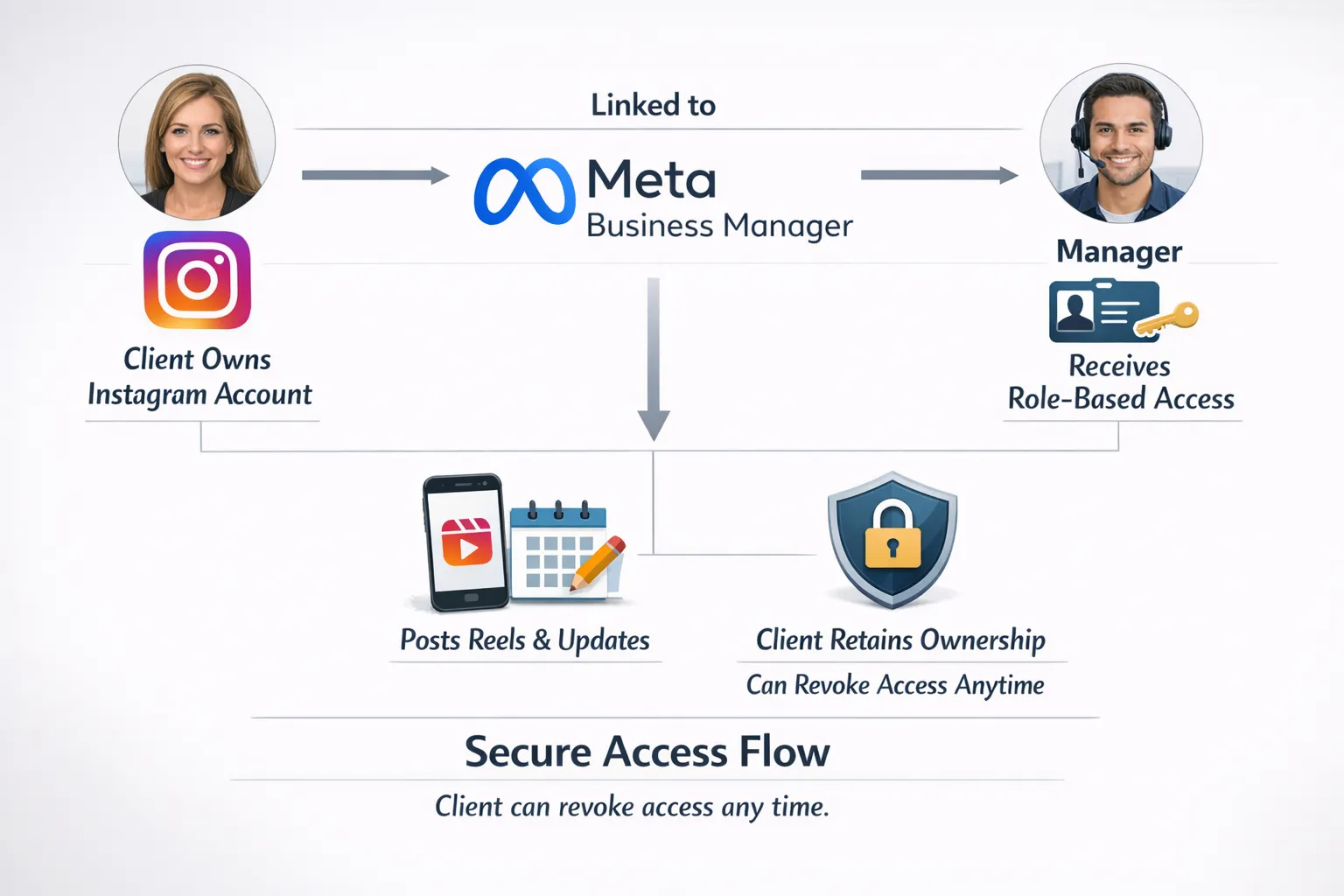
For managers, the goal is simple: keep the client in control of ownership, while giving you reliable access to publish and handle day-to-day tasks.
If you take only one thing from this guide, make it this: avoid password sharing whenever you can. It creates messy responsibility, increases lockout risk, and makes incident response harder.
Before you touch anything, ask the client:
If the recovery email is a former employee’s Gmail, you do not have a “hosted account,” you have a future emergency.
Most serious workflows (permissions, integrations, insights) are smoother on Professional accounts.
If the client is not sure, direct them to Instagram’s official Help Center and Professional Account guidance in the Instagram Help Center.
For role-based access, the client should manage access via Meta’s business layer (not by giving out the password). In many setups, that means:
The exact screens change, but the principle stays the same: your access should be granted and revocable without changing the password. Meta’s central documentation lives in the Meta Business Help Center.
Not every manager needs full admin rights.
A clean structure is:
This reduces damage if a manager’s laptop is stolen, a password manager is compromised, or access must be removed quickly.
Instagram account security is not only about “strong passwords.” For hosted operations, your biggest risks are inconsistent logins, weak recovery channels, and “helpful” shortcuts like shared credentials across multiple people.
Enable two-factor authentication on every hosted account you touch.
Prefer:
SMS-based 2FA is better than nothing, but it is vulnerable to SIM-swap attacks and carrier account compromise. Instagram documents available 2FA options in the Instagram Help Center.
In most real-world incidents, attackers do not “hack Instagram.” They compromise the email, then reset the Instagram password.
Minimum baseline for the recovery email:
If the client refuses to secure the email, you should treat the Instagram account as inherently high-risk and document that risk.
For credential-based access (when role-based access is impossible), store credentials in a password manager and enforce uniqueness.
A healthy hosted-ops standard:
Most platforms offer backup or recovery codes when 2FA is enabled. Those codes matter most when a device is lost or a phone number changes.
Best practice is to:
Instagram will challenge logins that look abnormal. Hosted accounts often trigger this by accident.
Common causes:
If you need distributed teams, role-based access via Meta tools is your friend. If you must log in directly, keep access limited to one primary operator and one backup.
A lot of “security issues” are actually operational patterns that look suspicious to automated systems.
If you are the designated poster:
Consistency reduces verification loops, challenge prompts, and sudden “suspicious activity” lockouts.
Many “growth tools” promise likes, follows, DMs, or auto-commenting at scale. These are exactly the behaviors platforms try to detect and suppress.
Even if the account is not banned, automation can:
When in doubt, stick to official publishing flows (Instagram app, Meta Business Suite) and maintain clean, human-like operations.
Hosted operations fail when nobody knows what was configured.
On the first day you take over a hosted Instagram account, capture a simple “handoff record” and store it securely (ideally in your team’s internal system, not in a public doc):
This is not bureaucracy. It is what lets you solve problems in minutes instead of days.
Speed matters. The longer an attacker stays logged in, the more damage they can do (posting scams, changing email, adding their own 2FA).
If you suspect compromise or unauthorized access:
If the client owns the account (as they should), they must be involved immediately, because they control the recovery channels.
Hosted work can go sideways when responsibility is unclear.
If you are the only person with access to recovery codes or the only device approved for login, the client is one emergency away from blaming you for a lockout you did not cause.
Make sure the client retains:
It sounds convenient until you change numbers, travel, lose a phone, or leave the role. Use client-controlled security methods or a dedicated operations method approved by the business.
When campaigns are high-stakes, memory is not enough. Track:
This also helps you prove professionalism and makes renewals easier.
TokPortal’s manager work is built around reliable organic posting and secure account handling across markets, with a clear “no bots, native reach” philosophy. Whether you are operating TikTok accounts through TokPortal or supporting a client’s broader short-form distribution that includes Instagram Reels, the same fundamentals apply:
If you’re the kind of operator who enjoys process, consistency, and keeping systems safe while content ships every day, this is exactly the muscle that makes a great TokPortal manager.
To learn more about TokPortal and how the platform approaches secure, scalable social account operations, visit the TokPortal site.

 Any question? Contact us.



%401x.svg)